Larger files need Pro. Failed jobs are never counted.
Prepared example is free
3 free jobs a day
Cancel anytime
EXAMPLE RESULTSample data
Source images · 20
→
Fit
Crop
Pad
✓ 60 variants · nothing stretched
Organised ZIP · contact sheet
One consistent catalogue batchOrganised ZIP, contact sheet and manifest
Source images
20
Prepared variants
60
Stretched images
0
Formats, limits & file handling
Works with
JPG, PNG, WebP, AVIF
Limit
20 images · 10 MB each · 3 variants
You receive
Organised ZIP, manifest and contact sheet
File handling
24 hours
Turn mixed product photos into consistent shop-ready sets. Choose up to three formats, control framing and padding, correct each source once, and receive documented outputs instead of repeating the same edits by hand.
THREE CLEAR STEPS
From your images to a usable result.
01
Add your input
Limits and supported formats are visible before you begin.
02
Review the result
Check the preview, findings or artwork before you download.
03
Download
Use your free job, plan or credits. Failed jobs are never counted.
Interactive synthetic example
Plan a complete product-image batch.
Change the layout, background and filename pattern. The prepared output facts come from versioned synthetic sources and the current image worker.
✓
No upload in this demoFour self-created product illustrations
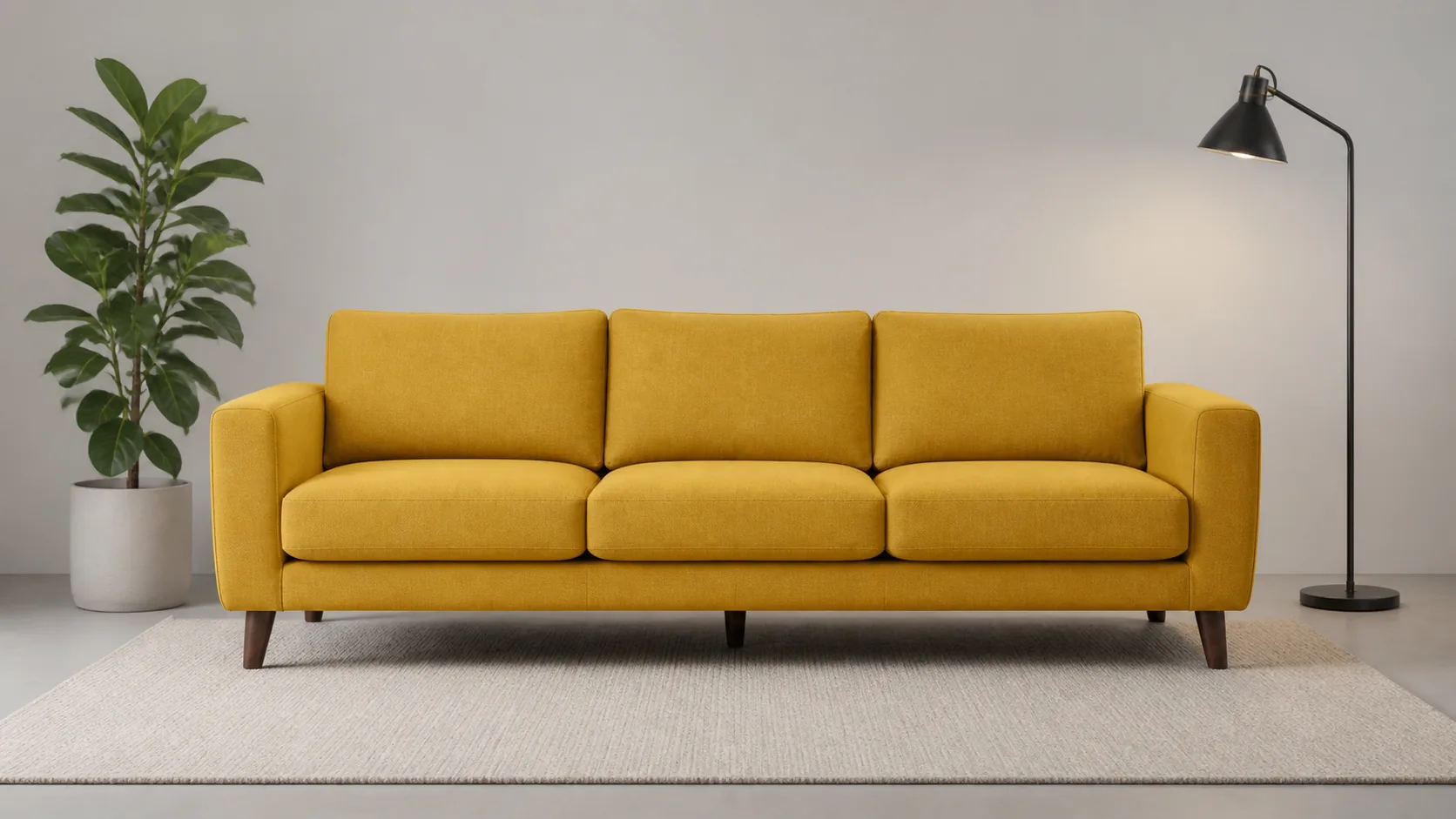
The same wide sofa photo below makes the consequence visible before you apply a rule to twenty products.
Fit · complete scene
Keep the sofa and edge details
The complete source remains visible. White canvas space is added because the wide photo and square output have different proportions.
Plant and floor lamp remain visible
No part of the sofa is removed
Optional safe padding adds breathing room
Crop · frame filled
Fill the square and lose edge content
The frame is filled edge to edge around the chosen focus point. The plant, lamp and outer sofa edges are intentionally removed.
No empty canvas around the photo
Focus point controls what survives
Every cropped result still needs review
One batch, controlled decisions
From mixed sources to one organised catalogue package
Add up to 20 static images.Each JPG, PNG, WebP or AVIF uploads separately with progress, retry and file-level validation.
Correct each source once.Set a focus point, rotate or flip a file, and optionally trim a confirmed uniform border before variants are created.
Choose one to three outputs.Use square, portrait, landscape, thumbnail or longest-side presets; adjust Fit or Crop, padding, canvas colour and quality.
Review the production plan.A live count shows planned files and megapixels before the job can start.
Download a verifiable package.Variant folders include safe filenames, a contact sheet, detailed CSV, settings JSON and export manifest.
Typical uses
Marketplace listingsPrepare a consistent square set while keeping complete products visible.
Agency handoffDeliver several documented output variants in one package.
Web performanceCreate compact WebP thumbnails and longest-side catalogue files from the same sources.
Clear boundaries
This tool does not remove backgrounds, retouch products, detect objects, generate new content, apply beauty filters or guarantee marketplace approval. Uniform-border trim is deterministic and user-controlled; it is not automatic subject extraction. Images are never stretched and never upscaled unless the user explicitly enables it.
Need a byte limit instead?
Compress finished images to a target file size.
The Image Compressor searches for the highest quality below a chosen limit and keeps dimensions unless resizing is explicitly allowed.
Exact answers about layouts, formats, presets and file handling.
What does the Product Image Batch Editor change?
It resizes, crops or pads images, converts formats, removes metadata, applies safe filenames and organises up to three output variants in one ZIP. Explicit per-image rotation, flipping and uniform-border trimming happen before those variants are created.
Does it remove image backgrounds?
No. A solid or transparent canvas can be added around an existing image, but the tool does not detect or remove the product background.
What is the difference between Fit and Crop?
Fit keeps the complete image visible and fills unused space. Crop fills the output box without stretching and removes content that extends beyond the selected frame.
Can I add space around every product?
Yes. Fit outputs offer 0–25 percent safe padding inside the confirmed canvas. Crop uses the full frame and therefore ignores padding.
Which output presets are included?
Marketplace square, Shopify square, portrait 4:5, landscape 4:3, compact WebP thumbnail and longest-side web catalogue are included, plus a custom 64–5000 pixel output.
Will small images be enlarged automatically?
No. Upscaling is off by default. Small sources are marked, and upscaling happens only when the user explicitly enables it for a custom output.
Which image formats are supported?
The tool accepts static JPG, PNG, WebP and AVIF images. Animated images, GIF, SVG, PDF, TIFF, PSD, RAW and HEIC are rejected.
Do the marketplace presets guarantee approval?
No. The presets provide practical dimensions and formats, but they cannot verify product content or guarantee approval by Shopify, Etsy, Amazon or another marketplace.
What is included in the ZIP?
Each selected output variant gets its own folder. The ZIP also contains a detailed CSV manifest, the confirmed settings JSON, an export manifest and a contact sheet created from up to twelve outputs.
What happens to uploaded images?
The server processes them without an external AI or image API. Originals are deleted after success or failure, and generated results expire after 24 hours.
Can I upload product images publicly now?
Yes. Upload product images and use 3 free jobs a day without an account, or up to 200 a day with Pro.
Try it free
Inspect the batch before sharing images.
Use the synthetic demo and real sample ZIP now. Your own files run here without an account.